Your Sessions
Everything you're booked for, however it was booked — by a player through the app, or by you.
Opening It
Sessions — in the sidebar on desktop, the dock on mobile.
Calendar And List
Sessions opens on a calendar, with a Calendar ⇆ List toggle in the toolbar. The toolbar works the same way as a venue owner's:
| Control | What it does |
|---|---|
| Today / This Week / This Month | Jump to that range |
| ← → | Step through ranges |
| The date range | Opens a custom range picker |
| New Session | Start the session wizard |
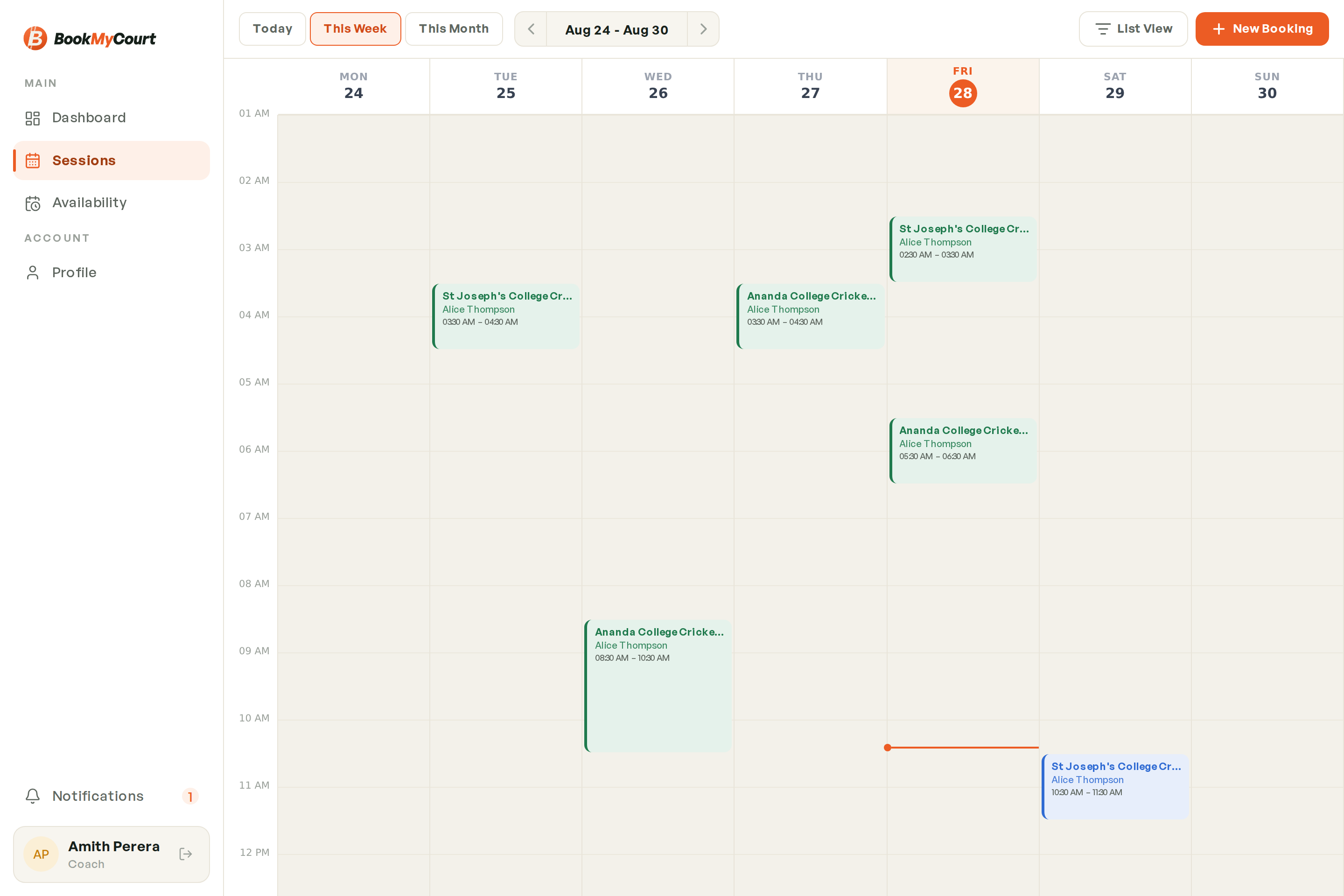
Drilling into a single day splits your sessions by venue, not by court — because a coach's day often runs across more than one place, including off-platform ones.
Filtering The List
The list view has status chips: All, Upcoming, Checked in, Completed, Cancelled, No-show. See Understanding Bookings for what each means.
Opening A Session
Tap any session to open its detail sheet:
- The player or student, with call and email buttons
- Venue and Court · Sport — or just a Venue name for an off-platform session
- Date and Time
- The price breakdown and whether it's paid
Cancelling
You can cancel sessions you created yourself, while they're still Upcoming. Tap Cancel session and confirm.
Sessions a player booked through the app are not yours to cancel — only the venue can. Contact the venue if one needs to come off.
What You Can't Do
Coaches don't get the owner's Check in and Mark complete actions — those belong to the venue running the court.