Managing Bookings
The list view — search, filter, and work through your bookings.
Switching To The List
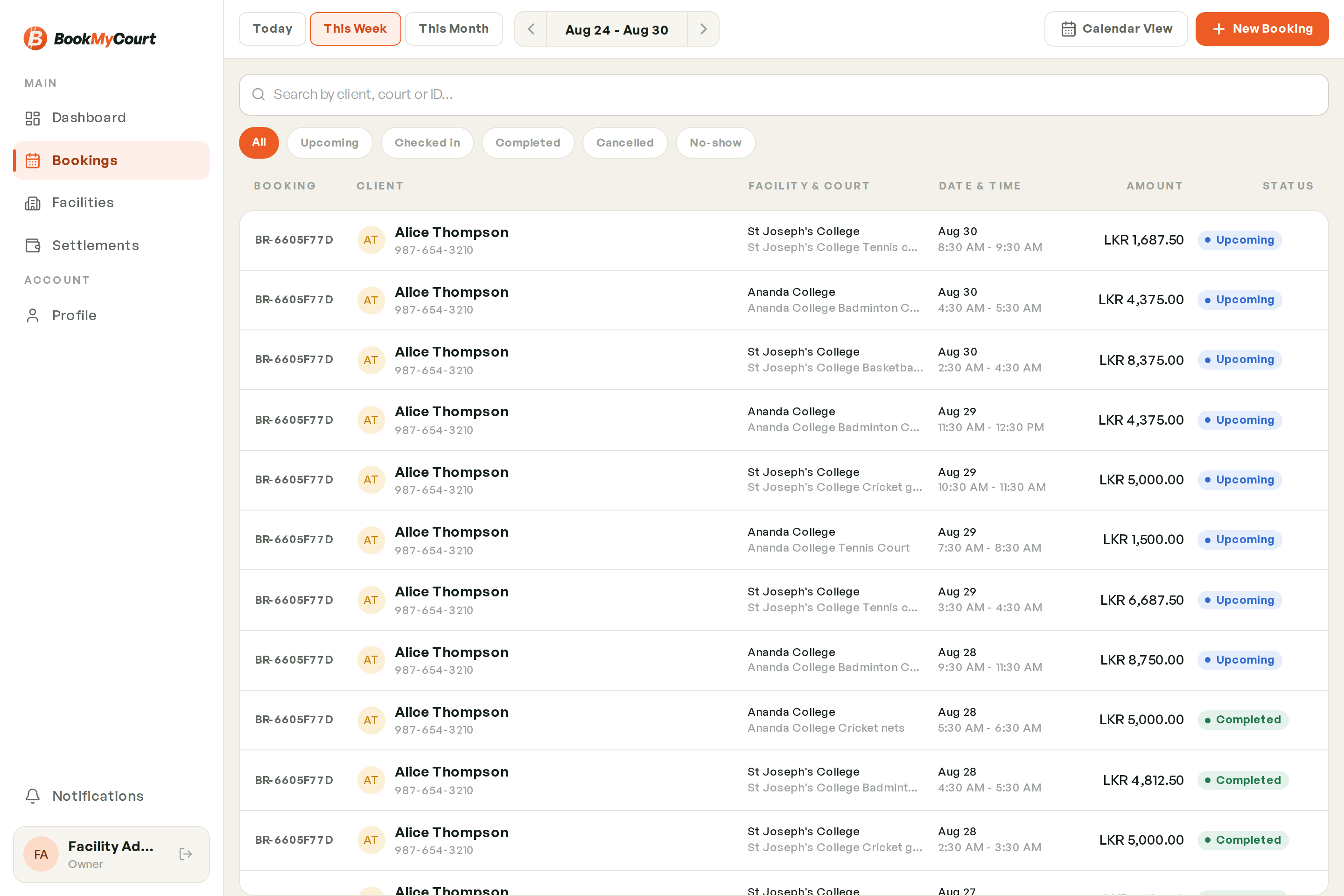
Bookings opens on the calendar. Use the Calendar ⇆ List toggle in the toolbar to switch. The list keeps whatever date range the toolbar is showing, so switching views never loses your place.
What The List Shows
On desktop the list is a table: booking reference, player, court and sport, time, status badge, and amount. On mobile each booking is a card: player, court, time, amount, and status.
Tapping any row or card opens the booking detail sheet.
Searching
The search box above the list matches on player name and booking reference.
Filtering By Status
Below the search box is a row of status chips. Tap one to narrow the list:
| Chip | Shows |
|---|---|
| All | Every booking in the range |
| Upcoming | Confirmed, not yet started |
| Checked in | Player has arrived |
| Completed | Finished sessions |
| Cancelled | Cancelled bookings |
| No-show | Players who never arrived |
Only one status chip is active at a time. Tap All to clear it.
Changing The Date Range
The toolbar at the top drives both views:
- Today, This Week, This Month jump to those ranges
- The arrows step backwards and forwards a range at a time
- The date itself opens a range picker for anything custom
Pull To Refresh
On mobile, pull down on the list to refetch. On desktop the list refreshes on its own when you make a change.