Understanding the Dashboard
Your venue's state in one screen. It's the first thing you see after signing in.
The Stat Cards
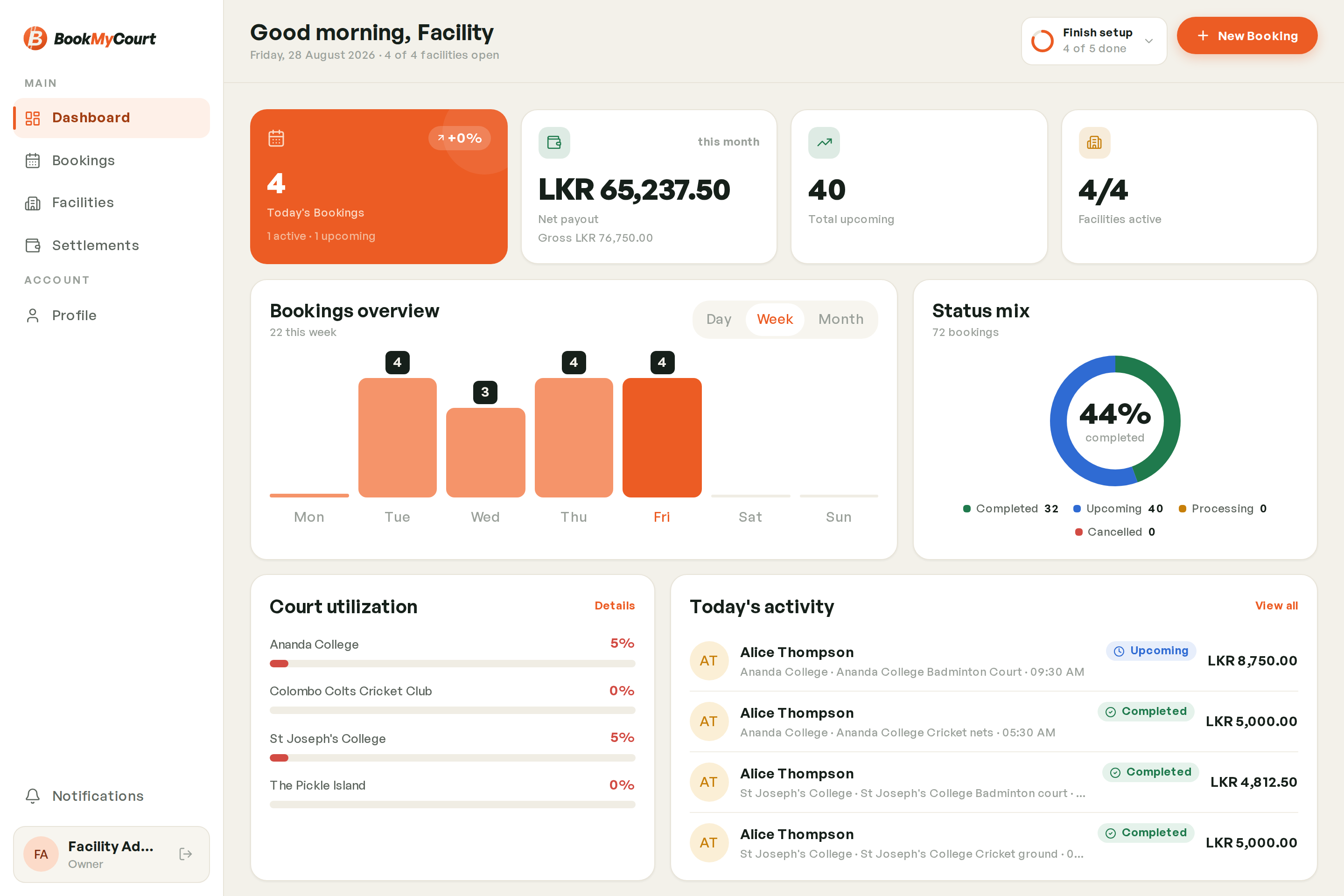
| Card | What it tells you |
|---|---|
| Net payout | This month's earnings after commission, with gross beneath |
| Today's Bookings | How many today, split into active and upcoming |
| Yesterday | Yesterday's booking count, for a quick comparison |
| Total upcoming | Everything booked ahead across your venues |
| Facilities active | How many of your venues are live, e.g. 2/3 |
Tapping Facilities active takes you straight to Facilities.
The Status Donut
A breakdown of your bookings by status, with the total in the middle. It uses the same status colours as everywhere else — see Understanding Bookings.
Bookings Overview Chart
A chart of booking volume over time, so you can see which days actually sell.
Finish Setup
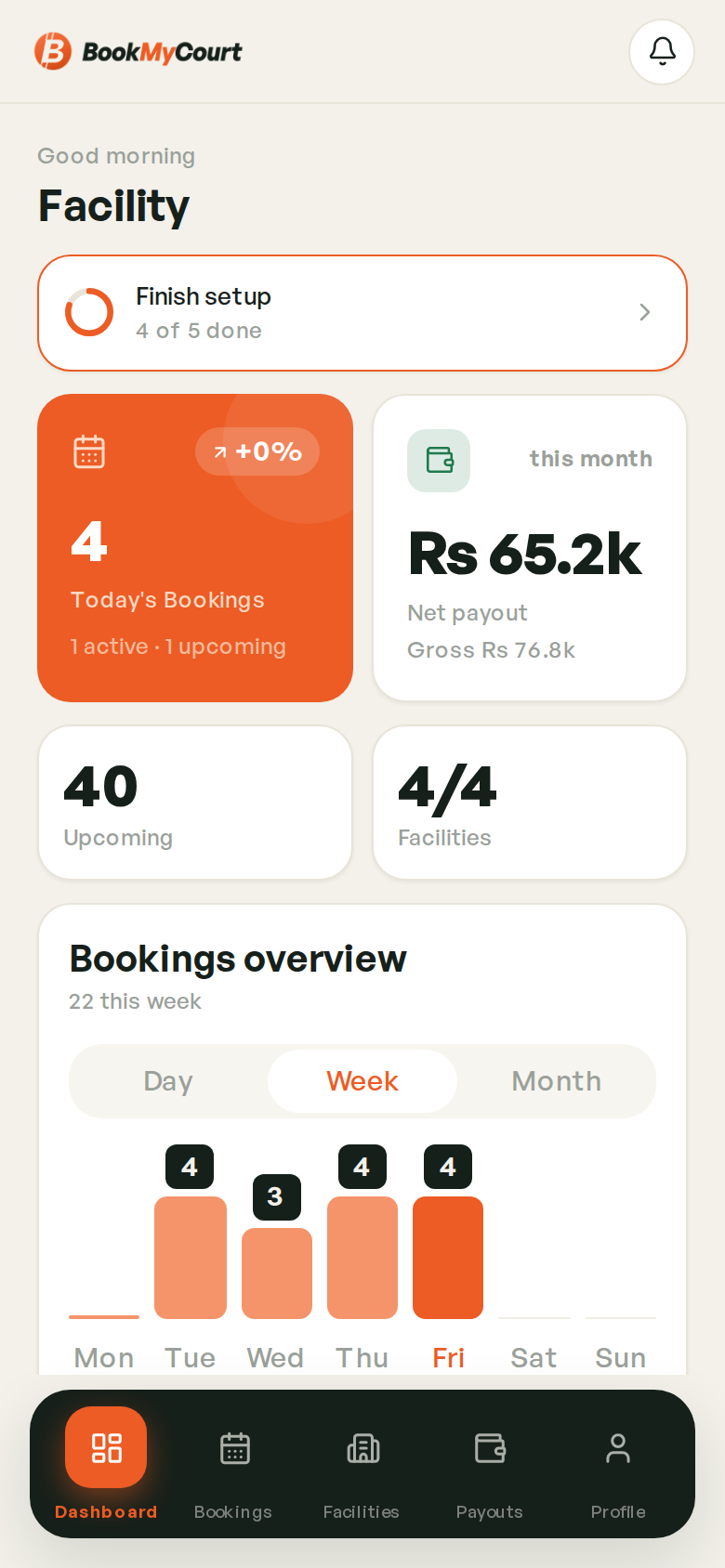
If any setup steps are outstanding, a Finish setup card sits on the dashboard showing your progress — e.g. 4 of 5 done. Tapping a step jumps straight to it. See Setting Up Your Venue for what it tracks.
The card disappears once everything is done.
Mobile
On a phone the dashboard condenses to mini-stats — upcoming, facilities — plus the donut and chart beneath.