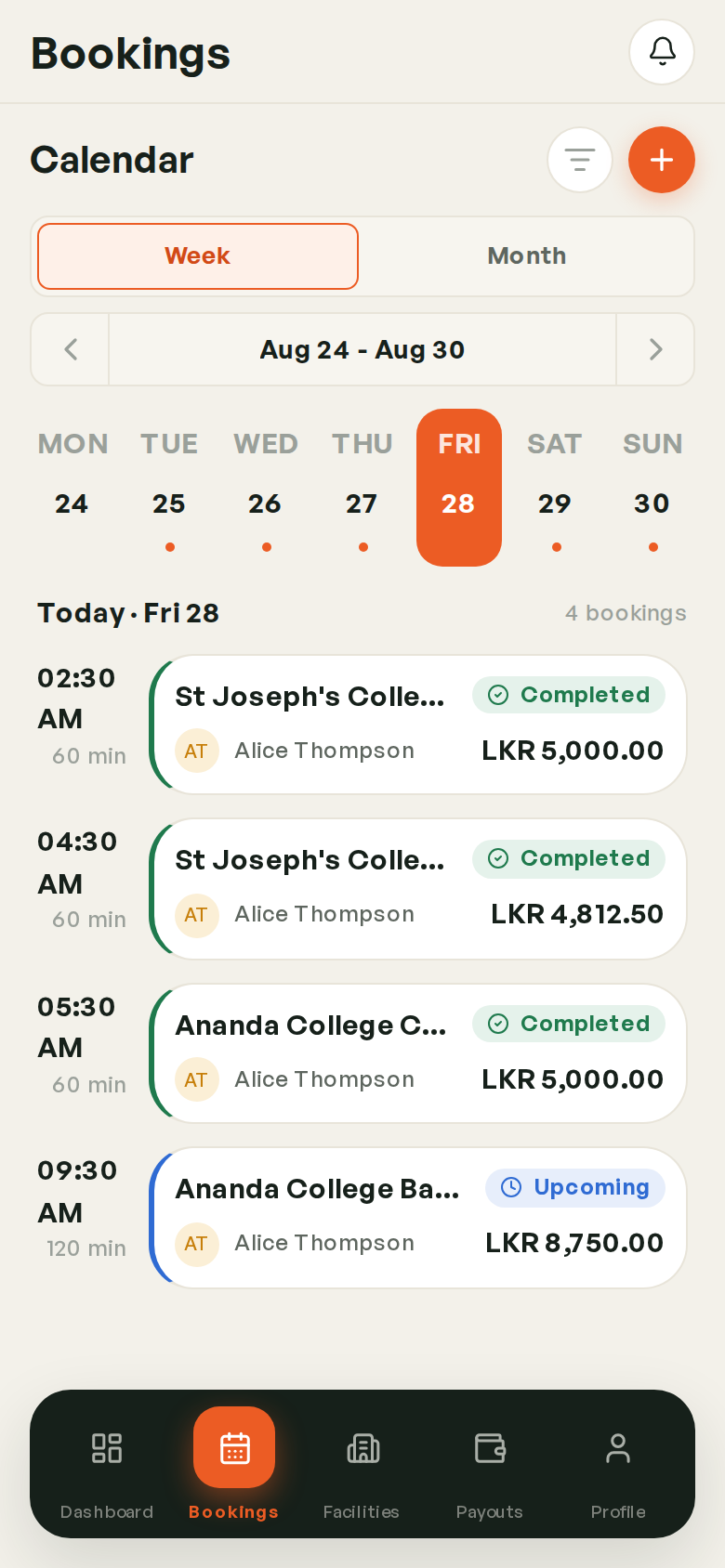
The Bookings Calendar
Your courts against the clock — the fastest way to read a day and to move a booking.
Opening It
Bookings opens on the calendar. On desktop it's in the left sidebar; on mobile it's the Bookings tab in the bottom dock.
The Toolbar
The same toolbar drives the calendar and the list, so switching views keeps your place.
| Control | What it does |
|---|---|
| Today / This Week / This Month | Jump to that range |
| ← → | Step back and forward one range at a time |
| The date range | Opens a picker for any custom range |
| List View | Switch to the list |
| New Booking | Start the walk-in wizard |
Reading The Grid
Time runs down the left. What runs across depends on the range:
- This Week / This Month — the days, with today highlighted
- Today — the courts, so you can see which are free right now
Each booking is a block showing the court, the player's name, and the time.
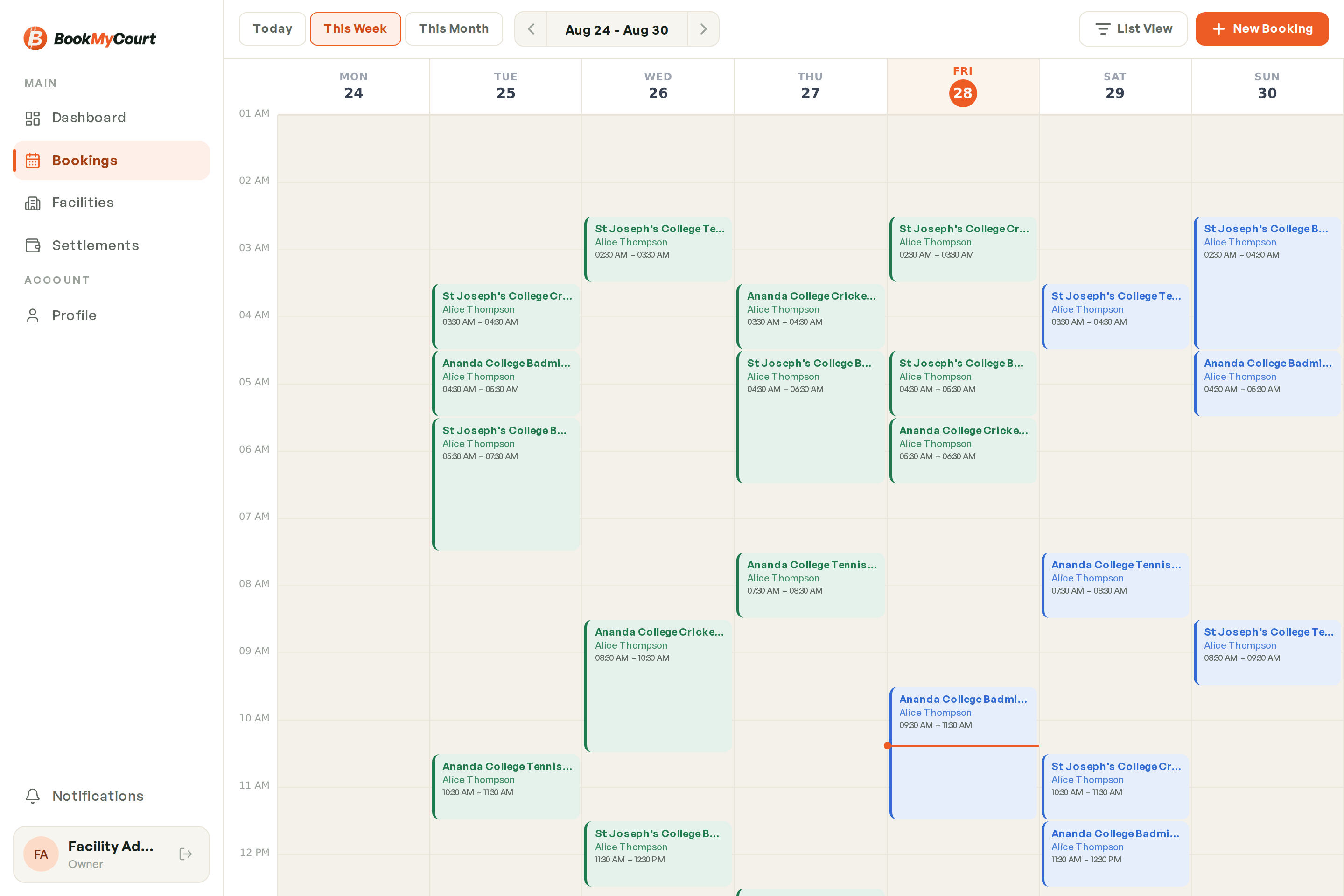
Every block is coloured by its status — the same colours used everywhere else in the app. See Understanding Bookings for what each status means.
Tap any block to open the booking detail sheet.
Rescheduling By Dragging
Drag a booking block to move it. Drop it on a different time, a different day, or a different court, and the booking moves there.
The block lands in its new slot immediately. If the move isn't allowed it snaps back and tells you why:
- The target slot is already booked
- The target is outside your opening hours
- The target is in the past
A 2-hour booking dropped at 4pm becomes 4pm–6pm. Dragging changes when and which court, never how long.
Mobile
On a phone the calendar shows one day at a time with an agenda beneath it. Dragging works the same way — press and hold a booking, then move it.