Promo Codes
Create discount codes that players type at checkout to get money off the court price at your facilities.
Only owners manage venue codes. Staff accounts can't see this page. Coaches have their own codes, which come off their coaching fee.
Opening Promo codes
On a phone, tap More in the bottom bar, then Promo codes. You can also open it from Profile under Business.
On desktop, click Promo codes in the sidebar.
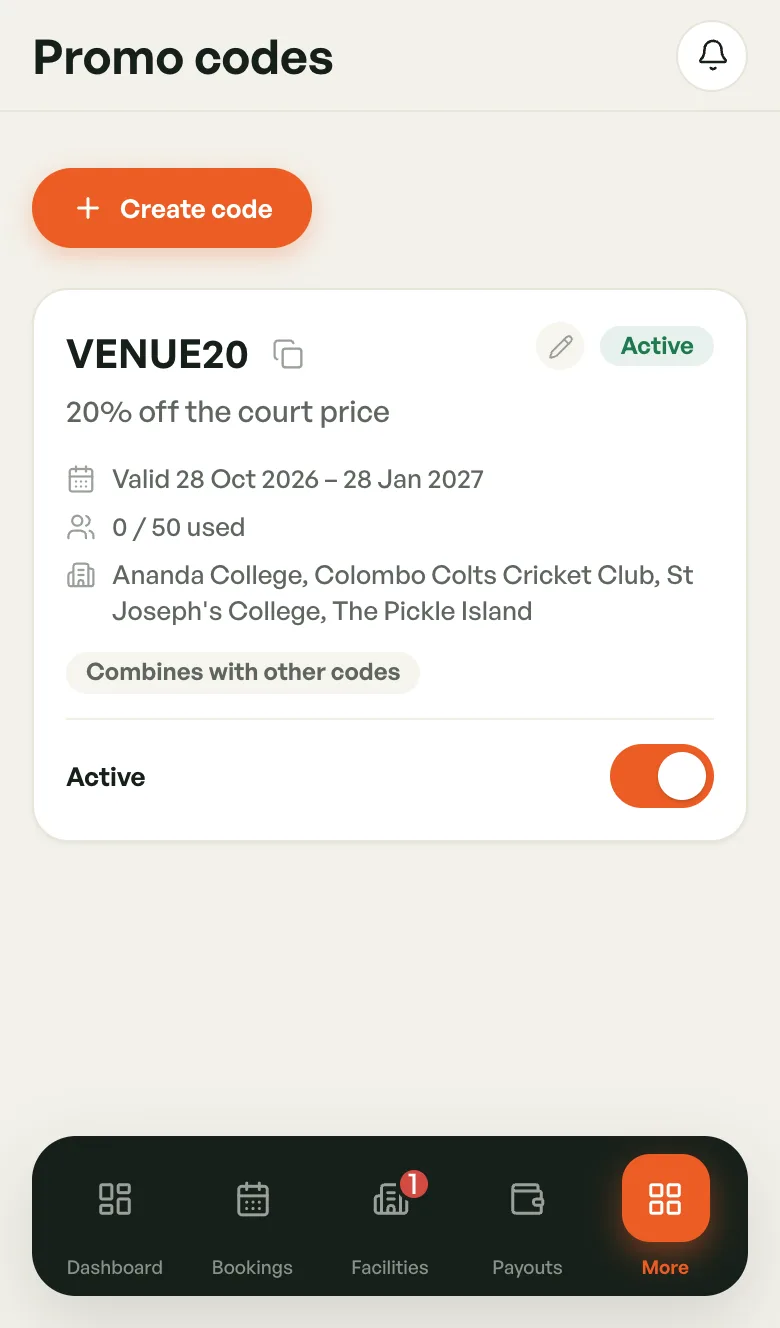
Reading a code card
Each card shows:
- the code, with a copy button next to it
- what it takes off, for example 20% off the court price
- the dates it's valid
- how many times it's been used, for example 0 / 50 used
- the facilities it works at
- its rules: Unlimited uses, Once per player, and Combines with other codes or Use alone
The badge at the top right shows the code's state:
- Active — players can use it now.
- Scheduled — its start date hasn't come yet.
- Paused — you switched it off.
- Expired — its end date has passed.
- Used up — it reached its total uses.
Creating a code
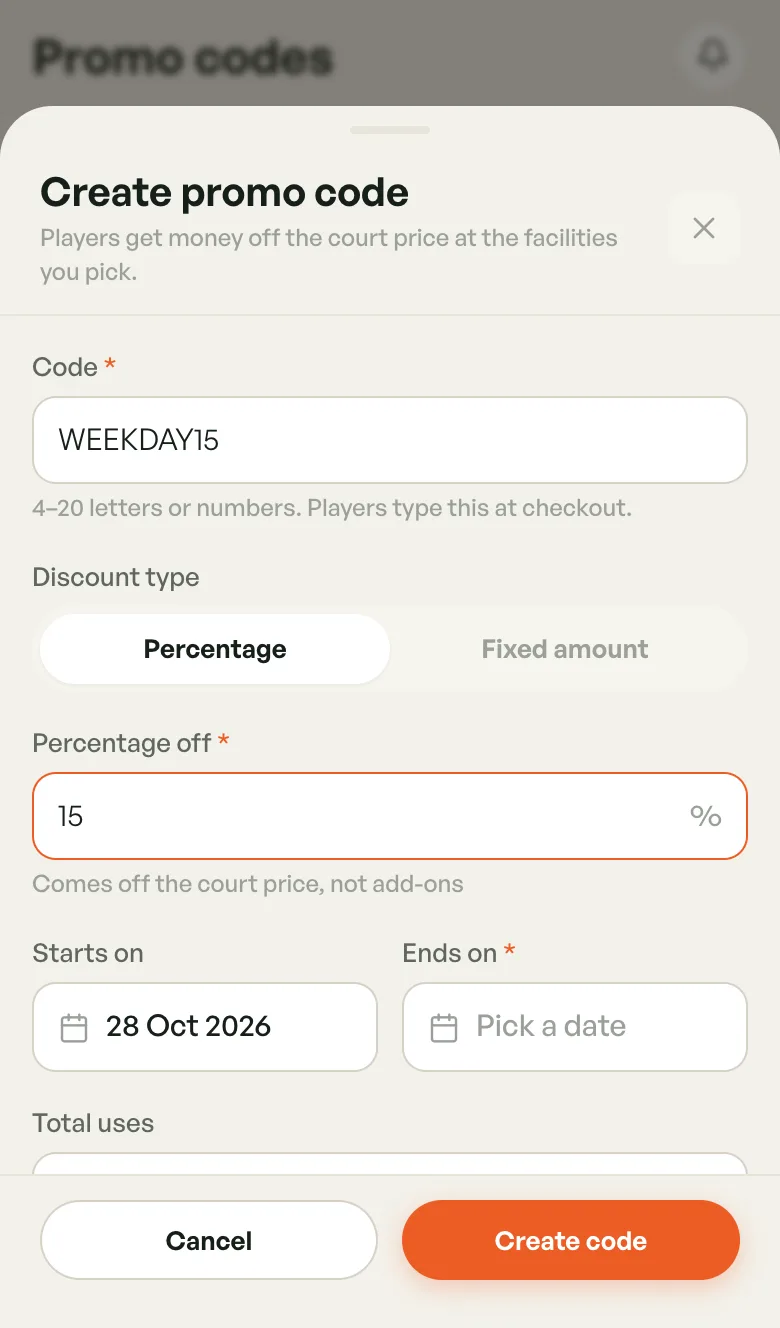
- Tap Create code.
- Type the Code players will enter, 4 to 20 letters or numbers (for example SUMMER20).
- Pick a Discount type: Percentage or Fixed amount (in Rs).
- Enter the Percentage off or Amount off.
- Set Starts on (today by default) and Ends on.
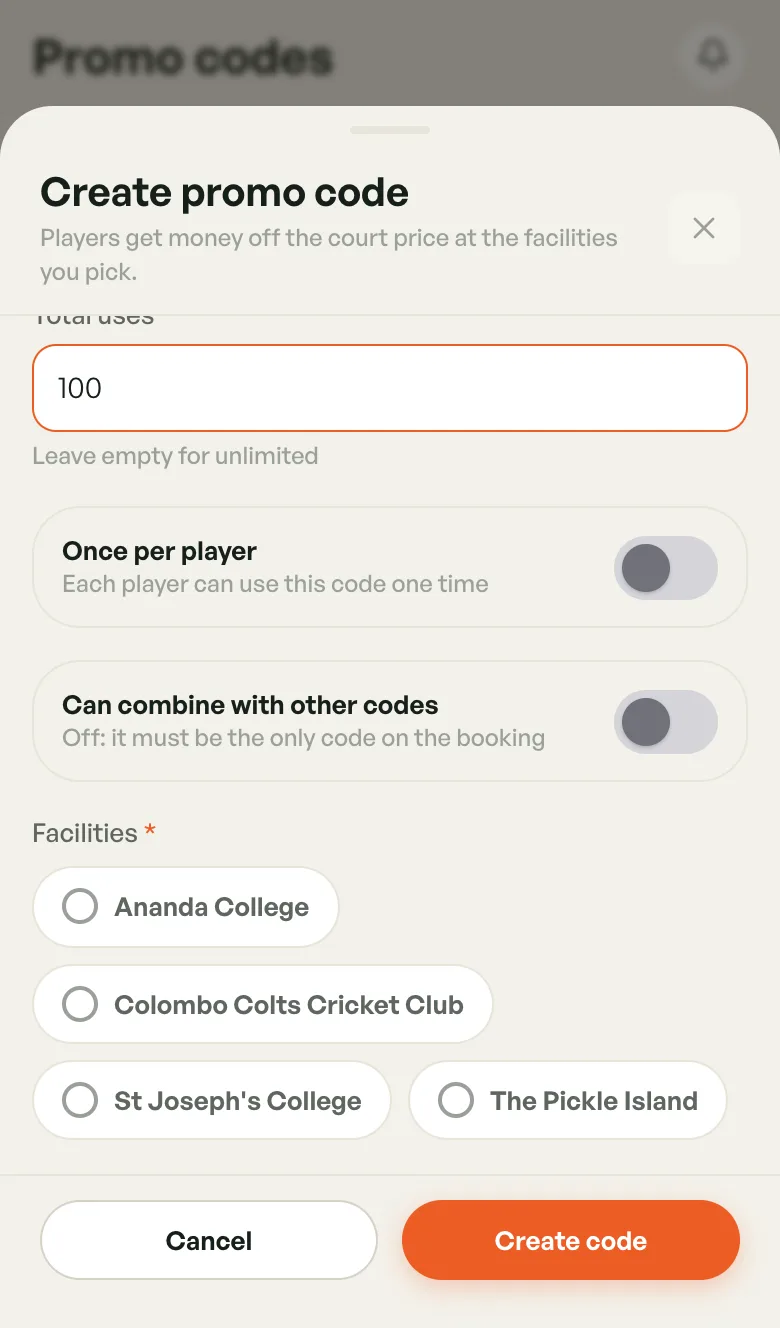
- Optional: set Total uses. Leave it empty for unlimited.
- Turn on Once per player or Can combine with other codes if you want them.
- Under Facilities, tick where the code works. If you have only one facility, it's ticked for you.
- Tap Create code.
A few rules to know:
- The discount comes off the court price only, not add-ons.
- A percentage must be more than 0 and at most 100.
- Each code must be unique. If someone already has it, you see That code is taken.
- A player can use up to 3 codes on one booking. Codes that can't be combined must be the only code on the booking.
Editing a code
Tap the pencil next to the code's badge. Change what you need, then tap Save changes.
Once a code has been used, the code itself can't be renamed. You also can't set Total uses below the number already used.
Pausing a code
Use the switch at the bottom of the card. Turn it off to pause the code, and on to make it Active again.
If BookMyCourt paused a code, the card says Paused by BookMyCourt and you can't switch it back on. Contact BookMyCourt support.